Es sollte nicht oft vorkommen, aber manchmal landen Internetseiten Besucher auf einer nicht vorhandenen Seite. Oft wird dann eine simple Seite angezeigt mit dem Hinweis dass die Seite nicht verfügbar ist. Etwas mehr Informationen können da hilfreich sein. Besonders wenn eine Seite einem kompletten Redesign unterzogen wurde, kommt es vor, dass Google Besucher auf nicht vorhandene Seiten schickt. In diesem Tutorial geht es um die Anpassung der “Standard 404-Seite”.
Concrete5 erlaubt es, ohne grossen Aufwand die 404-Seite anzupassen. Allerdings gibt es ein paar Dinge die man kennen muss. Als Ausgangslage dient diese Seite – die Standard Concrete5 404-Seite:
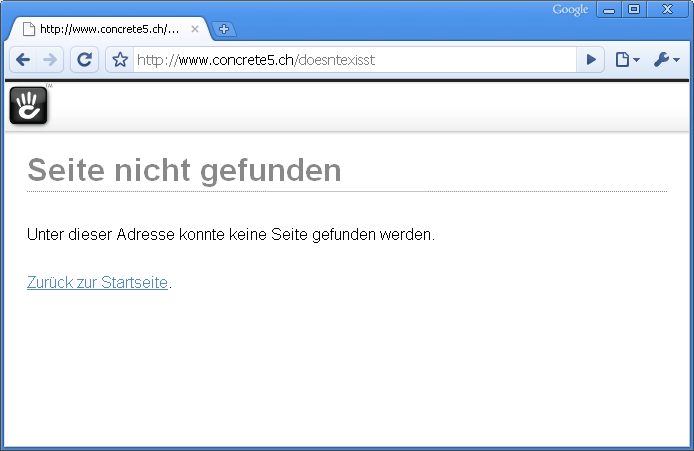
It hopefullly doesn’t happen very often but sometimes a user might enter an address which doesn’t exist. In most situations a simple page is displayed, telling him that the page doesn’t exist. Having some more detailled information can be very helpful, especially when you just relaunched your website. Google & Co need a while to reindex your page and users will probably see “page not found” more frequently than usually.
Concrete5 allows you to customize this page but it needs a few modifications. Some of them are probably a bit hard to find – which is why I wrote this tutorial. The standard Concrete5 “page not found” page looks like this:
Wie man sieht, wird standardmässig das Concrete5 Dashboard Layout verwenden. Als erstes wollen wir unser eigenes Theme einsetzen. Dazu öffnen wir diese Datei: “config/site_theme_paths.php”. Es gibt bereits einige Beispiele welche auskommentiert sind, neu sollte die Datei jedoch folgendermassen aussehen:
1 2 3 4 5 6 7 8 9 10 11 12 13 14 15 16 17 18 19 20 21 22 | <?php defined('C5_EXECUTE') or die(_("Access Denied.")); $v = View::getInstance(); $v->setThemeByPath('/page_not_found', "yourtheme"); /* you can override system layouts here - but we're not going to by default For example: if you would like to theme your login page with the Green Salad theme, you would uncomment the lines below and change the second argument of setThemeByPath to be the handle of the the Green Salad theme "greensalad" $v = View::getInstance(); $v->setThemeByPath('/login', "yourtheme"); // $v->setThemeByPath('/403', "yourtheme"); // $v->setThemeByPath('/register', "yourtheme"); // $v->setThemeByPath('/dashboard', "yourtheme"); */ |
Zeile 5 und 6 definieren unser eigenes Theme. “yourtheme” muss natürlich mti dem Namen des eigenen Themes ersetzt werden. Der Name ist identisch mit dem Verzeichnisname des Themes welches sich im Ordner “themes” befindet.
Es ist wichtig, dass das Theme eine Datei mit dem Namen view.php für “Single Pages” hat. Sie kann ungewähr folgendermassen aussehen:
1 2 3 4 5 6 7 8 9 10 11 12 13 14 15 | <?php defined('C5_EXECUTE') or die(_("Access Denied.")); $this->inc('elements/header.php'); ?> <div id="content"> <div id="body"> <!-- begin --> <?php echo $innerContent; ?> <!-- end --></div> </div> <?php $this->inc('elements/footer.php'); ?> |
$innerContent enthält alle Informationen und muss zwingend ausgegeben werden.
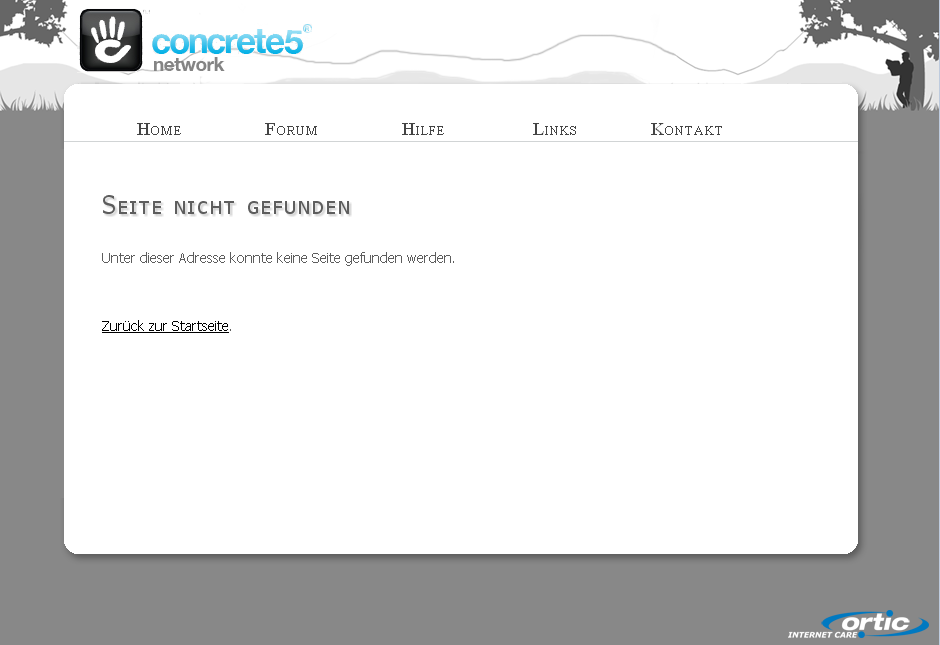
Nachdem site_theme_paths.php gespeichert wurde, sollte die 404-Seite unser Layout übernommen haben. In meinem Fall sieht das folgendermassen aus:
Sitemap
Machmal ist es hilfreich, wenn die 404-Seite die Seitenstruktur ausgibt. Auch das lässt sich relativ einfach umsetzen. Dazu muss von dieser Datei /concrete/single_pages/page_not_found.php hier eine Kopie erstellt werden /single_pages/page_not_found.php. Dadurch können wir den Inhalt der Datei anpassen, ohne im “Concrete5 Core” Änderungen vorzunehmen. Folgendes Beispiel zeigt den Code mit einer eingebauten Sitemap:
1 2 3 4 5 6 7 8 9 10 11 12 13 14 15 16 17 18 19 20 21 22 23 24 | <?php defined('C5_EXECUTE') or die(_("Access Denied.")); ?> <h1 class="error"><?php echo t('Page Not Found')?></h1> <?php echo t('No page could be found at this address.')?> <?php if (is_object($c)) { ?> <?php $a = new Area("Main"); $a->display($c); ?> <?php } ?> <?php $bt = BlockType::getByHandle('autonav'); $bt->controller->orderBy = 'display_asc'; $bt->controller->displayPages = 'top'; $bt->controller->displaySubPages = 'all'; $bt->controller->displaySubPageLevels = 'all'; $bt->render('view'); ?> <a href="<?php echo DIR_REL?>/"><?php echo t('Back to Home')?></a>. |
Die Zeilen 13 bis 20 verwenden den Autonav Block um eine Sitemap auszugeben. Mehr braucht’s nicht! In meinem Fall sieht die Seite so aus:
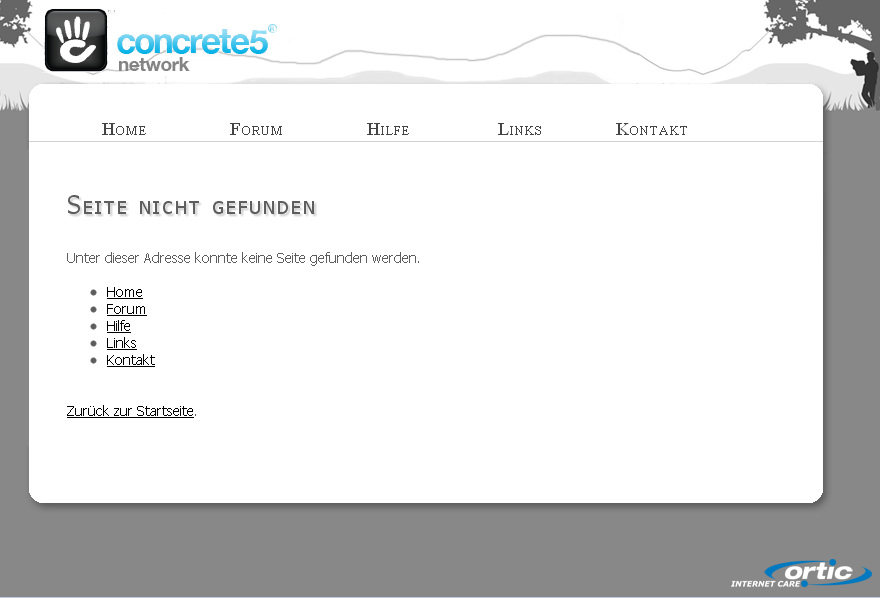
Etwas überflüssig in meinem Fall, je nach Struktur/Seite aber vielleicht ganz nützlich.
As you can see, the layout uses the default concrete5 dashboard theme. First, we’d like to use our own theme! Open “config/site_theme_paths.php”, there are already a few commented examples in the file:
1 2 3 4 5 6 7 8 9 10 11 12 13 14 15 16 17 18 19 20 21 22 | <?php defined('C5_EXECUTE') or die(_("Access Denied.")); $v = View::getInstance(); $v->setThemeByPath('/page_not_found', "yourtheme"); /* you can override system layouts here - but we're not going to by default For example: if you would like to theme your login page with the Green Salad theme, you would uncomment the lines below and change the second argument of setThemeByPath to be the handle of the the Green Salad theme "greensalad" $v = View::getInstance(); $v->setThemeByPath('/login', "yourtheme"); // $v->setThemeByPath('/403', "yourtheme"); // $v->setThemeByPath('/register', "yourtheme"); // $v->setThemeByPath('/dashboard', "yourtheme"); */ |
In line 5 and 6 you can see the two lines I’ve added. Make sure that you replace “yourtheme” with the name of your theme – identical to the directory name of your theme in the folder “themes”.
Make sure your theme has a file called view.php. It might look similar to this:
1 2 3 4 5 6 7 8 9 10 11 12 13 14 15 16 17 18 | <?php defined('C5_EXECUTE') or die(_("Access Denied.")); $this->inc('elements/header.php'); ?> <div id="content"> <div id="body"> <!-- begin --> <?php echo $innerContent; ?> <!-- end --> </div> </div> <?php $this->inc('elements/footer.php'); ?> |
$innerContent is where all the information is saved.
Once you’ve saved site_theme_paths.php your error page uses your own theme. In my case like this:
Sitemap
It might make sense to display a sitemap when a users landed on the 404 page. This is also easy to do. Create a copy of /concrete/single_pages/page_not_found.php here /single_pages/page_not_found.php. This makes sure we don’t modify files within the Concrete5 core. Open the file and make it look like this:
1 2 3 4 5 6 7 8 9 10 11 12 13 14 15 16 17 18 19 20 21 22 23 24 25 | <?php defined('C5_EXECUTE') or die(_("Access Denied.")); ?> <h1 class="error"><?php echo t('Page Not Found')?></h1> <?php echo t('No page could be found at this address.')?> <?php if (is_object($c)) { ?> <br/><br/> <?php $a = new Area("Main"); $a->display($c); ?> <?php } ?> <br/><br/> <?php $bt = BlockType::getByHandle('autonav'); $bt->controller->orderBy = 'display_asc'; $bt->controller->displayPages = 'top'; $bt->controller->displaySubPages = 'all'; $bt->controller->displaySubPageLevels = 'all'; $bt->render('view'); ?> <br/><br/> <a href="<?php echo DIR_REL?>/"><?php echo t('Back to Home')?></a>. |
Lines 13 to 20 uses the autonav block to display a sitemap. That’s it! In my case the “page not found” page looks like this:
A bit useless in my case but probably more helpful if you have more pages than I do.
14 Comments
Thank you Remo! Been struggling with redirects in page_not_found.php, but this is a much better solution.
Thanks for these great tutorials – just getting started with Concrete5 and I am constantly referring back to your site!
Hey thanks Remo! 🙂
That’s a good tutorial, wish it was there earlier before I’ve gone the stony way to my 404 page with c5.. but mine looks like this, probably an inspiration for others: http://www.fif-moebel.de/404
How can i make the nav render in the header.php of a theme globally for all single pages?
Thx for this tutorial!
Anyone have an English translation please?
It is translated?!
English: http://www.codeblog.ch/2010/01/concrete5-custom-404-page/
German: http://www.codeblog.ch/de/2010/01/concrete5-custom-404-page/
Thanks, I didn’t even notice the German/English translation flags at the top of the page earlier. Thanks a lot, great procedure!
Hi Remo, I’m wondering if you could please help me. DO you have any ideas why my nab bar works normally on a normal page:
http://oa.artowl.co.nz/
but doesn’t on my page not found:
http://oa.artowl.co.nz/oops
I’d really appreciate some help. It’s driven me nuts trying to figure it out.
Sorry but I never worked with Spry and don’t intend to do.
Thanks for the tutorial. Is it possible to also change the default text?
Page Not Found
No page could be found at this address.
Back to Home.
There are different ways to do that. One takes a few steps, I’ll see if I can write an article about it someday.
The other, easier but a bit ugly way would be to replace $innerContent. You can either remove it completely or do something like str_replace(‘Page Not Found’,’Back to Home’, $content) But as I said, this is a bit ugly.. (The correct solution would be an override to the complete single page, but as I said, this probably needs a bit more explanation)
Thanks, Remo I have too struggled the page redirect for long. Keep up the work
Perhaps you can provide some insight on the structure of concrete5’s MVC framework. It appears that custom 404 pages within a package (packages/package_name/themes/theme_name) continue to override your local theme customizations (themes/theme_name).
I know that this is the case for the typography.css. Should you want to create local edits to the typography.css you have to copy over the package theme’s default.php which then forces you to pull over all of the package theme files.
Overall the goal is to only pull files that you want to modify into your local theme.
Any thoughts on this. In having a custom 404 page installed in a package prevented us from following your tutorial and override the 404 page within the root single_pages directory.
I can’t imagine how this should happen. A theme part of a package isn’t used at all until you install & activate it. The path /packages/package/themes/theme doesn’t have much use if you’re theme is located in /themes/theme.