Creating a drop down navigation is an old technique by now but it’s still used in a lot of cases to hide parts of a navigation. In addition to the plain CSS menu I wrote more than 2 years ago, I decided to write a new tutorial which uses JavaScript as well. You might ask why: Avoiding JavaScript is nice but creating something as complex as a drop down navigation without any JavaScript leads to a few ugly work arounds. You’ll also have some difficulties to add a fade out and fade in effect unless you’re using CSS3 which isn’t well supported yet.
But at the end it’s up to you, both solutions can work just fine!
Using SooperFish is also a bit easier for us, you’ll see at the end of the tutorial how little code you needed.
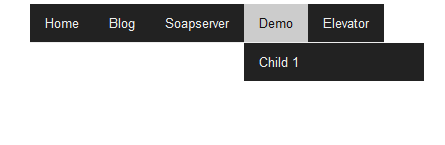
At the end your navigation can look like this:
Prerequisite to create your drop down menu
It’s rather simple, the only thing you need is the jQuery drop down plugin called SooperFish. You can find a link to download it on this page: http://www.sooperthemes.com/open-source/jquery/jquery-sooperfish-dropdown-menus.
Once you’ve got the ZIP file, extract all the files into a folder of your choice, we’ll later use some (not all) files from it.
Creating a new block template
If you worked with concrete5 before you’ll probably know that you should never modify any files located in the “concrete” directory. It’s part of the CMS core which gets overwritten whenever you update to a newer version of concrete5. Luckily this isn’t necessary for lots of things! We can easily create an addon, or a block template in this case, without touching the core at all.
In the root of your website, open the folder called “blocks” and go though these steps:
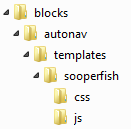
- Create a folder called “autonav”
- Within “autonav”, create a folder called “templates”
- Within “templates”, create a folder called “sooperfish”
- In the last directory you created, “sooperfish”, create a file called “view.php” and put the following content in it:
1 2 3 4 5 6 7 8 9 10 11 12 13 | <?php $bvt = new BlockViewTemplate($b); $bvt->setBlockCustomTemplate(false); function callback($buffer) { return (str_replace('class="nav"', 'class="sf-menu" id="nav"', $buffer)); } ob_start("callback"); include($bvt->getTemplate()); ob_end_flush(); ?> |
Background information about the autonav template view.php
What does this template do?
Since the HTML structure needed by SooperFish is almost identical with the default autonav template, we don’t copy the whole template which would create a lot of redundant information. Instead we include the default template in our new template. However, there are still a few things we modified. The original template has an element like this:
but we want this:
Having this element allows us to use the default CSS files shipped with the Sooperfish plugin. You could modify the CSS files as well and remove all the output buffering functions in the code above.
- Create another file in the same directory called “view.js” and put this content in it:
1 2 3 | $(document).ready(function() { $('.sf-menu').sooperfish(); }); |
- In the directory where you created “view.php” and “view.js”, create another directory called “js”
- From the SooperFish ZIP, copy “jquery.sooperfish.min.js” and “jquery.easing-sooper.js” into the “js” directory.
- On the same level as “js”, create another directory called “css”
- From the Sooperfish ZIP, copy “sooperfish.css” and “sooperfish-theme-black.css” into the directory called “css”
We’ve already created and copied all the files we need, the only thing we have to do is to make sure our new template is used. Your file structure should look like this now:
Go to your page and start editing the page and modify the autonav block to make these settings:
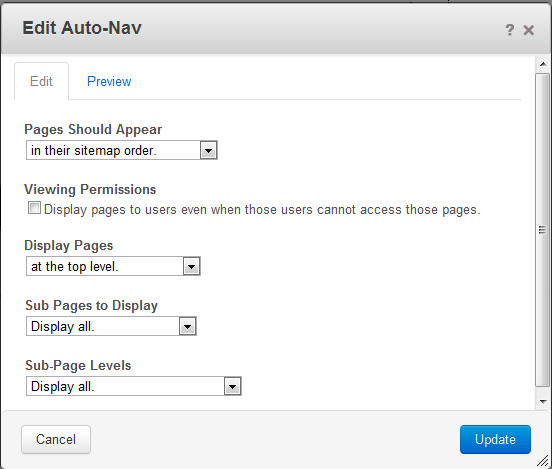
It’s important that you select “Display all” in both “Sub Pages To Display” and “Sub-Page Levels”. When you work with a JavaScript based navigation you usually print all the items into the HTML output, but hide some of them using JavaScript. Click on Update when you’re done and click on the block you modified again, but this time select “Custom Template” and select “Sooperfish” and click on “Update” again.
Publish the changes and you’ll see your new drop down navigation!
94 Comments
This templates assumes, that you’re working with jQuery. Since concrete5 uses it for almost everything, it’s included in 99% of all sites but probably not yours.
Can you try to include the following script in the header? (should be here: themes/-your-theme-/elements/header.php)
http://ajax.googleapis.com/ajax/libs/jquery/1.7.2/jquery.min.js
Okay, so it seems as if I am so much of a newb that it’s not working quite like it is supposed to. I have changed my theme and edited my backgrounds and such but with this theme (floating) I am able to keep the layout, see the drop down menu but it doesn’t drop down.
If I use the above code then it only displays the code jargon on the site.
Do I edit any portion of the code to point to the jquery?
I’ll keep trying.
HI
How would I include the another template almost exactly the same as the default in this script?
I guess i would have to add it somewhere in here?
setBlockCustomTemplate(false);
function callback($buffer)
{
return (str_replace(‘class=”nav”‘, ‘class=”sf-menu” id=”nav”‘, $buffer));
}
ob_start(“callback”);
include($bvt->getTemplate());
ob_end_flush();
?>
Any help would be really appriciated.
Thanks
What do you mean by “another template”? A SooperFish CSS template I assume? You only have to replace the CSS file you’ve put in the directory “css”. concrete5 automatically loads those files located in the “css” directory if their extension is “.css”!
Michelle, if you’re talking about the site you’ve entered when you wrote the ast comment, it’s not a jQuery issue in this case. However, I can’t see anything about the SooperFish template. Are you sure you’ve selected the right autonav block template after you added the autonav block?
does this display 3rd level dropdowns?
This tutorials uses SooperFish, whatever SooperFish does you can do very easily. First level on top (horizontal) and the second level (down) and a third level (to the right) is supported out of the box. Check this page to see an example http://www.sooperthemes.com/sites/default/files/SooperFish/example.html
Hi remo,
WOW, I spent almost two days trying to get this working and you make it look easy 😉
A couple of questions, if you don’t mind.
1 How do you control the hover shading, my template keeps over-riding any sooperfish settings?
2. How would I make the menu span across the full width? When I try to use anything but display:inline it turns into a vertical list.
Thanks.
1. In the example CSS, there’s a CSS style like this:
Just look for :hover, usually there aren’t too many of them..
2. That’s probably a bit difficult as every element has a different width. Sooperfish would have to calculate all the items manually and as far as I know, there’s no such option. However, I just created a wrapper for it, I’m not the author of SooperFish and certainly don’t know every line of code in it. You might want to check if the actual author knows a bit more about that: http://www.sooperthemes.com/open-source/jquery/jquery-sooperfish-dropdown-menus
Thanks for this post.
subpages are appear an dropdown when hover, but it disappers when moves down,there is any solution.
Please tell me, thanks in advance.
Have you tried with different themes? There could be another CSS interfering with the menu. Does the original SooperFish menu work fine for you? http://www.sooperthemes.com/sites/default/files/SooperFish/example.html
Hi,
I am a newbie with concrete5.
Is it possible to adapt the code to redirect to an anchor inside a block title of the current page ?
ex:
Anchor:
on click on a drop down element we are redirected to the title of the block inside the current page.
block title inside the page
thanks for your blog.
Have you tried to add an external link into the sitemap? You’d have to enter the whole path to the page but isn’t perfect but I think it’s the easiest way to achieve this.
Hi,
First of all, thank you for all your tutorials!
I’ve followed this one and it works perfectly, however, I have an issue with the second tier sub menu on chrome and IE.
Here is what I’m working on..
The sub menu is only set up for Talent, under Talent there’s a submenu, and under each category is a second submenu.
Firefox displays the second menu no problem, but I can’t seem to get it to display the second level menu on Chrome, or IE. At first I thought it was due to a jquery conflict I have for the Mobile responsive version of the navigation, but after removing that jquery script, the issue is still there.
I’m at a loss, I’ve spent hours going over my css, adding margins, background colors, to figure out where the menu is, but can’t seem to find it.
Any help would be greatly appreciated.
Chris, this is probably because the third level menu is behind the second level menu. Try to add this:
I won’t make the layout look nicer but I think it should show you where the menu is hidden. I’m not sure, but I think it’s a problem caused on my sooperfish css.
You might want to download the latest CSS, it might work better: http://www.sooperthemes.com/open-source/jquery/jquery-sooperfish-dropdown-menus
Thank you so much Remo, that did it!
I do plan on adding in arrows, I was just waiting until I figured out what was going on with the menu first.
Again, thank you so much for your help.
Combination of Concrete5 and superfish is absolutely unuserfriendly..I wouldn’t recomment anyone to use and waste tonse of time on how to simply edit.
Guys, there are way better options in Joomla or Drupal..
First of all, this blog post is about SooperFish and not Superfish. While both sound similar, it’s not the same.
I assume that I’ve built more projects based on concrete5 and never had any issues. Also, the concept I’m describing is aimed at developers. If you want an easier solution (maybe for you “userfriendlier”), look at stacks or global areas. I still prefer the method described in this template as I like to keep the navigation in the code but that’s just a personal taste.
You say there are better options but don’t mention anything specific. Your comment feels a bit like a personal opinion and not much more. Why don’t you state some more specific issues you’ve had with S(oo/u)perFish and concrete5?
hi there, thanks for this great tutorial
the only thing im having trouble with is that the dropdownmenu appear unaligned with the parent page.
this means for example “about>ignacio>bio>expertise>” everything beneath “about” appears moved to the right…and it even seems to be part of other menu pages…
how could I solve this?
thanks
problem solved… I just added some third level pages I was missing and that was it
Hi Remo,
thank you very much for your tutorial.
I’d like to customize it a bit. I would remove this swinging effect of the drop down lists. But I don’t know how. Is it customizable ?
Is the menu customizable via the dashboard ?
Thank you
Hi Frank! The sooperfish method used to initialize the menu has a bunch of different options. One which allows you to change the animation.
Have al look at this code and you’ll see a more advanced example: https://github.com/jjroelofs/jQuery-SooperFish/blob/master/example-advanced.html
No, this template doesn’t have any options in the dashboard, it’s not an add-on but only a block template. It would be possible to create a complete add-on, but that takes more work. My tutorial is a solution focused on developers.
Hi Remo,
thank you. Where do I have to write such an option in your files ? And which option ist it ?
Thanks
Frank
easingShow and easingHide is probably what you need. They have to be placed in view.js
Hey Remo – thanks for this, very useful – good work!
Where would be the best place to add in conditionals for page attributes – primarily I want to add in the ‘exclude from nav’, or even better, ‘exclude children from nav’ attribute.
Usually in auto nav I’d add this to the for loop, but this script is constructed a little differently right?
Hey Richard, yes it works a bit different, it basically wraps the existing template in order not to have to duplicate a lot of code.
However, you can easily make modifications if you copy /concrete/blocks/autonav/view.php and put that content in your view.php. But don’t forget to change the class “nav” to “sf-menu”.
I aded sooperfish to my website and everything is working great except the drop downs are not working on Android and Apple mobile devices. Is thee something I am missing?
No, I don’t think you’re not missing anything. I assume the SooperFish dropdown just doesn’t work with touch devices! There’s no touch device lying around right now but if you want to be sure, check if this works: http://www.sooperthemes.com/sites/default/files/SooperFish/example.html I assume it doesn’t which would confirm that it’s a problem found in SooperFish
Thanks for the reply. The drop downs on that site do work on touch devices. Any other ideas?
For those who wonder about this (I’ve sent him an e-mail): The issue occurs because the top-level pages have a link as well. If you use a touch device, it will open those links. If someone wants to use SooperFish on a touch device, the link in the top level pages has to be replaced by a “#”, but keep in mind that touch device users won’t see the content you’ve added to the top level pages!
Thanks, this worked exactly as it should, and exactly as I wanted.
When you say the link in the top level page needs to be replaced with a ‘#’, where exactly do you mean? Do you set an external link?
Cheers
Awesome – thanks so much!
Dear Remo,
Has anyone come up with a solution for disabling the parent link in a dropdown menu using sooperfish? In the past I have used ‘replace_link_with_first_in_nav’ which while not what I wanted was an acceptable solution. The problem I am having now is that I have two levels of links to skip and ‘replace_link_with_first_in_nav’ only works for one.
Elsewhere I saw the following instructions:
http://www.concrete5.org/marketplace/themes/businesstheme/questions-and-discussion/auto-nav-sub-pages/#228987
Which are for another nav theme. They instruct to change a line of code to read:
$pageLink = ‘#’;
The ‘#’ is familiar to me since that is how I would make a link unclickable if I was doing the menu in html.
I couldn’t find a place to put this code within the Sooperfish template so I tried putting it in the core autonav. Nothing happened.
I am very happy with how the Sooperfish menu looks right now and I would like to make it work for my needs. Am I heading in the right direction or should I start over with another menu template? Any recommendations?
Best,
waroly
First of all, do you want an unclickable link or a link that points to the sub page two levels below?
If you want to use ‘replace_link_with_first_in_nav’, you can place the code shown here into header.php of your theme:
http://www.concrete5.org/community/forums/customizing_c5/problem-with-andquotreplace_link_with_first_in_navandquot/#68804
This code works a bit different, it doesn’t change the autonav template (which would work too), it redirects you to the correct sub-page, no matter from where you opened the page.
/my-hidden-page (replace_link_with_first_in_nav)
/my-hidden-page/my-hidden-sub-page (replace_link_with_first_in_nav)
/my-hidden-page/my-hidden-sub-page/my-sub-sub-page (this is where we want to be)
If you modify the autonav template, the first two pages will never appear there. However, if you enter one of those URLs directly, you’ll still see that page. The benefit of the solution above is that no matter how you open the page, it will forward you to the correct page..
Hi Remo,
Thank you for your help!
The navigation is now functional. I did want the parent link to be unclickable, but this will be fine for now. Perhaps in the future I can use another menu that has that capability.
Do you have any recommendations?
Best,
waroly
In this tutorial I tried to remove as much redundancy as possible. You’d have to copy the whole template and use an attribute to mark a page as non-clickable. The view.php would have to be completely different.. It isn’t a big thing to do but it requires a bit of coding. If you’re familiar with PHP I can easily guide you trough it..
Hello, Remo.
I’ve developing new website and trying to incorporate Sooperfish- Glass theme menus.
They work great but they do not indicate the page I’m currently on…(is that “visited”?) How can I have the css indicate the current page so a visitor can see where they are?
I’ve seen a site: http://www.modernalbumdesigns.com that uses Sooperfish Glass theme menus…but the currently selected page is not highlighted in the menu. How can I make it do that?
Thanks,
john
Hey John!
The approach I’ve taken doesn’t create a full view.php and thus doesn’t allow you to change all the necessary CSS classes.
However, if you’re willing to add some custom CSS, you could easily add something like this: .nav-selected { font-weight: bold; } to your CSS file. “visited” is only for pages that have been visited, not to those being viewed at at the very specific moment.
Best,
Remo
I used you earlier drop down code for Concrete5 on Code Blog. It looks great when I’m logged in to the admin part of the site, but the minute I log out, it goes back to the original navigation.
When I was troubleshooting, I found this page.
Before I go and change everything using this method, is there something silly that I’m missing making the navigation from the other method not work to the public?
Thank you in advance for your help!
Scratch that – it seems to be working now.
Thank you for the great code!
Good to know it works for you. However, I’d recommend that you look into a more complete front-end framework like bootstrap or foundation. They offer a responsive navbar as well as a lot of other functionality like a powerful grid system. I wanted to write a blog post about it for a while but haven’t found the time to do so yet..
hi,
I am not a programmer, but I want to make my website look nice. I fiddled with an e107 and it wasn’t that easy, but I got 5 sorta pages up on my website wanderz.net with it. So since I couldn’t figure out how to do images, I looked at concrete5. I loaded it in its own directory on my website. I will move it to the main website after I get everything programmed. They didn’t have a drop down menu like I wanted so… I found your instructions. 🙂 Thank you.
Anyway, I downloaded the zip, made the directories and files, but the downloaded zip that I got did not include “sooperfish-theme-black.css” Is there anyway you could send me a copy of that please? Thanks. 🙂
Wanda
Those files belong to the script I was using. I didn’t create the sooperfish script, I only added a wrapper around it. You can find all those files here https://github.com/jjroelofs/jQuery-SooperFish/ and more specific https://github.com/jjroelofs/jQuery-SooperFish/blob/master/themes/sooperfish-theme-black.css.
But keep in mind, this tutorial is aimed at programmers, it’s about teaching how to customize the concrete5 autonav, not so much about end-users who want to style their navigation. The easiest solution is probably an add-on like this http://www.concrete5.org/marketplace/addons/superfish/