As you might have heard, a major release of concrete5 has been published. If you haven’t, here’s a list of things that have changed http://www.concrete5.org/documentation/background/version_history/5-7-0/.
In this post, I’m going to look at the process of upgrading an existing package which worked for version 5.6. I’m doing this step by step to show to show you possible error messages which might help you convert you own packages, but please note that I’m aiming at concrete5 developers knowing version 5.6 and will thus skip a few things which haven’t changed.
I’m going to use a simple package I wrote a while ago, it’s the zoom image block which allows you to zoom into a single image. Much like lightbox, but limited to a single picture. The code can be found here https://github.com/Remo/concrete5-zoom-image.
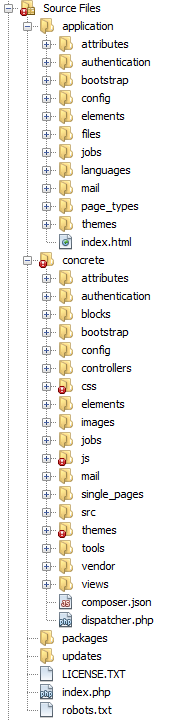
The Directory Structure of concrete5.7
Once you’ve downloaded and installed concrete5.7 you’ll probably see that the directory structure has changed quite a bit:
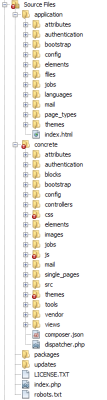
- The root directory
- There are only four directories left
- application – this is where your overrides for your own site should be placed
- concrete – this is still the core and should never be touched unless
- packages – this is obviously the place where you have to add your own packages
- updates – still the same, here’s where you can find an updated core
- What new directories are there
- authentication – there’s a pretty neat authentication system you can extend, by default there’s a built-in concrete5 system and one supporting facebook
- bootstrap – as the name tells you, here’s where things get started, loaded etc.
- src – this is where you can find the PSR4 auto-loaded classes, have a look at this directory to get acquainted with the new things in concrete5
- vendor – version 5.7 partially uses composer.json to manage dependencies, this is where you can find the libraries installed by composer
Installing the zoom image package
Before you install anything, make sure you’ve got a database dump you can easily restore, it might make things easier.
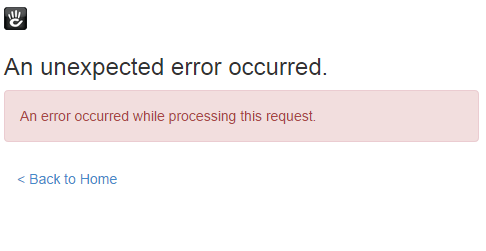
I simply downloaded the latest version from github and placed it in a directory called zoom_image in the packages directory. In concrete5, type add functionality in the search box and select the first item. You’ll already see your first exception at this point:
 .
.
We can’t see any details about the error, now what? You can either look at your database and check the content of the Logs table or go back and type debug in the search box. Navigate to debug settings and check Show errors in page.. If you then to back to install your package, you’ll see a nice output produces by https://github.com/filp/whoops. It tells use, that we can’t redeclare the class ZoomImagePackage. That’s because concrete5.7 uses namespaces for pretty much everything. To get around this problem, we have to update the controller in our package. The first few lines have to look like this:
1
2
3
4
5
6
7
8
9
10
11
| <?php
namespace Concrete\Package\ZoomImage;
defined('C5_EXECUTE') or die('Access Denied.');
class Controller extends \Concrete\Core\Package\Package {
protected $pkgHandle = 'zoom_image';
protected $appVersionRequired = '5.7.0';
protected $pkgVersion = '2.0.0'; |
<?php

namespace Concrete\Package\ZoomImage;

defined('C5_EXECUTE') or die('Access Denied.');

class Controller extends \Concrete\Core\Package\Package {

    protected $pkgHandle = 'zoom_image';
    protected $appVersionRequired = '5.7.0';
    protected $pkgVersion = '2.0.0';
- A package controller class is always called
Controller.
- It derives from \Concrete\Core\Package\Package
- The namespace of your package controller has to start with
Concrete\Package\ and must then be append with the camelcased name of your package.
- I also updated the number to be 2.0.0, that’s not necessary, but probably make sense
When you reload the add functionality page again, you’ll finally see our package. Let’s try and install it! Next error:
Class 'Concrete\Package\ZoomImage\BlockType' not found. As I’ve mentioned above, the src directory contains some rather useful classes. We’re looking for something related to blocks and no surprise, there’s a Block directory. If you look at src/Block/BlockType/BlockType.php you can see where the missing class is. Open the file and you’ll know the namespace we have to import.
1
2
3
4
5
| <?php
namespace Concrete\Package\ZoomImage;
use Concrete\Core\Block\BlockType\BlockType; |
<?php

namespace Concrete\Package\ZoomImage;

use Concrete\Core\Block\BlockType\BlockType;
Unfortunately the package got installed anyway and uninstalling can be tricky if parts of your code haven’t been upgraded for 5.7. Let’s just restore that dump file we’ve created and try to install the package again. Guess what, the next exception. The zoom image block uses an old out-dated method called Loader::block. Remove it, restore the dump file and try again. Next, you’ll get an exception because BlockController isn’t defined. Namespaces again! While we do this, we can also make the class name change like we did with the package controller.
- The class is simply called
Controller too.
- You’ll have to derive it from
\Concrete\Core\Block\BlockController. If you look at the code below, you can see that I didn’t specify the fully qualifier name when deriving the class but rather added another statement to use.
- Your namespace has to be
Concrete\Package\[camel-case-package-handle]\Block\[camel-case-block-handle]
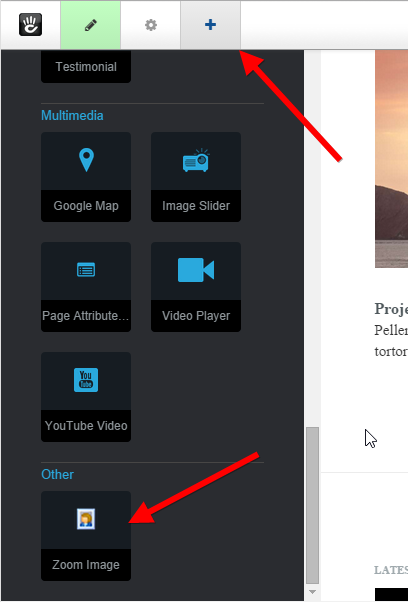
After making these changes, restore the dump file and install the package again – the installation process works! Now let’s try to add a zoom image block. Go back to the website and hit the plus icon:
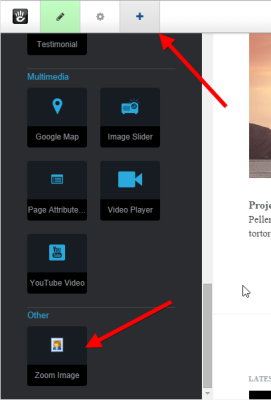
Drag your block into the page and release it. The block interface shows up, but after adding the block, nothing happens. That’s because the AJAX magic hid the error message, reload the page and you’ll get your next exception to work with Class 'Concrete\Package\ZoomImage\Block\ZoomImage\File' not found. As you can see, it tries to load the class File in our own namespace where it can’t be found. We forgot to add another use statement. Let’s add \Concrete\Core\File\File and reload the page.
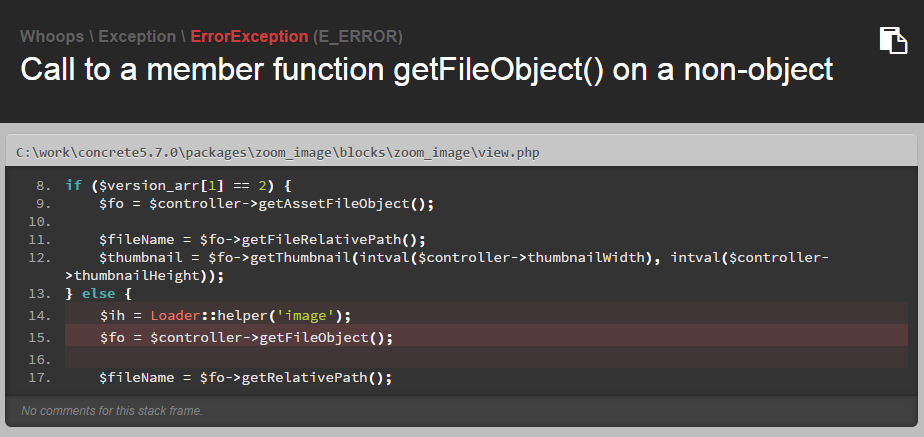
We now get the message Call to a member function getFileObject() on a non-object.
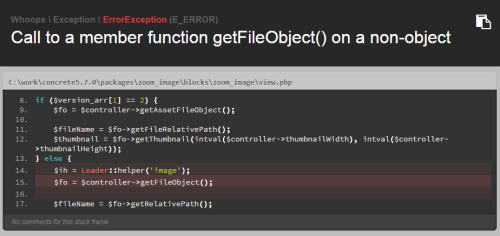
Accessing the controller from view.php was a bit of a habit when you looked at code back from version 5.0 and a bit later. Before we worry about the message, let’s make sure we properly forward data from the controller to the view and not the other way round.
Let’s add the following method to the block controller:
1
2
3
4
5
6
7
8
9
10
11
| public function view() {
$ih = Loader::helper('image');
$fileObject = $this->getFileObject();
$fileName = $fileObject->getRelativePath();
$thumbnail = $ih->getThumbnail($fileObject, intval($this->thumbnailWidth), intval($this->thumbnailHeight));
$this->set('fileName', $fileName);
$this->set('thumbnail', $thumbnail);
} |
public function view() {
    $ih = Loader::helper('image');

    $fileObject = $this->getFileObject();

    $fileName = $fileObject->getRelativePath();
    $thumbnail = $ih->getThumbnail($fileObject, intval($this->thumbnailWidth), intval($this->thumbnailHeight));

    $this->set('fileName', $fileName);
    $this->set('thumbnail', $thumbnail);
}
Use those variables in your view.php and then try to reload the page. No error messages for a change, but when you publish the page changes and try to click on the thumbnail of your block, nothing happens. If we check the error console of the browser, we can see a problem due to undefined jQuery variables. At the time when our javascript gets executed, jQuery isn’t loaded. We don’t think too much about it and simply use addFooterItem instead of addHeaderItem.
Reload and still no luck, msie isn’t defined. But luckily that’s just because of our JavaScript which isn’t happy with the new jQuery version. Update the script to get around that.
That’s it! JavaScript fixed and no more problems, everything working! While this article is a bit long, what we actually did isn’t that much. In short:
- Namespaced all of our controllers, the package and block controller
- Made sure we properly forwarded our variables from the controller to the view (something I should have done before)
- Fixed a problem because of the new jQuery version in concrete5.7
You can find the commit I’ve made on github, a proper diff file might help https://github.com/Remo/concrete5-zoom-image/commit/fa0895081b62fbbb53d8e79c00858619fcec1fd4.
Have fun with 5.7!