When you build an add-on with concrete5, you’ll sometimes want to hide a few things depending on the users or group. You might be tempted to hard-code a check to a specific group, but there’s a much more elegant way to handle this. It also gives you a lot more power to control who’s allowed to do something, just in case your customer changes.
In this tutorial, we’re building a new package called “codeblog_task_permissions” which you have to put in your “packages” directory. Within the new package directory, create a new file called “controller.php” and put the following content in it, we’ll have a closer look at what it does afterwards:
1 2 3 4 5 6 7 8 9 10 11 12 13 14 15 16 17 18 19 20 21 22 23 24 25 26 27 28 29 30 31 32 33 34 35 36 37 38 39 40 41 42 43 44 45 46 47 48 49 50 | <?php class TaskPermissionsPackage extends Package { protected $pkgHandle = 'task_permissions'; protected $appVersionRequired = '5.6.3'; protected $pkgVersion = '1.0'; public function getPackageDescription() { return t("Installs the Task Permission demo package."); } public function getPackageName() { return t("Task Permissions"); } public function install() { $pkg = parent::install(); $this->installTaskPermissions($pkg); } /** * This method installs our permission keys * * @param Package $pkg */ protected function installTaskPermissions($pkg) { // add a new permission key to handle shutdons $pkShutdownHandle = 'shutdown_planet'; if (!is_object(PermissionKey::getByHandle($pkShutdownHandle))) { $pkShutdown = PermissionKey::add('admin', $pkShutdownHandle, t('Shutdown the planet'), t('Permission to shutdown the planet'), '', '', $pkg); // assign administrators the right to handle our planet $group = Group::getByID(ADMIN_GROUP_ID); $adminGroupEntity = GroupPermissionAccessEntity::getOrCreate($group); $pa = PermissionAccess::create($pkShutdown); $pa->addListItem($adminGroupEntity); $pt = $pkShutdown->getPermissionAssignmentObject(); $pt->assignPermissionAccess($pa); } // install a second permission key to control the weather $pkWeatherHandle = 'make_weather_nice'; if (!is_object(PermissionKey::getByHandle($pkWeatherHandle))) { $pkWeather = PermissionKey::add('admin', $pkWeatherHandle, t('Remote Weather Control'), t('Access to the remote weather control system'), '', '', $pkg); } } } |
Let’s have a look at the simpler example. In line 44 we’re setting the handle of the permission key, it’s what we need to work with it when we run our check in the code. In the next line, we check if the permission key is already installed, if it isn’t, we add it. These are the parameters you can use:
public static function add( $pkCategoryHandle, $pkHandle, $pkName, $pkDescription, $pkCanTriggerWorkflow, $pkHasCustomClass, $pkg = false ) |
That’s all we need to add a custom attribute key. If you install the package and navigate to “/dashboard/system/permissions/tasks/” in your dashboard, you’ll see your custom permission keys at the end of the screen.
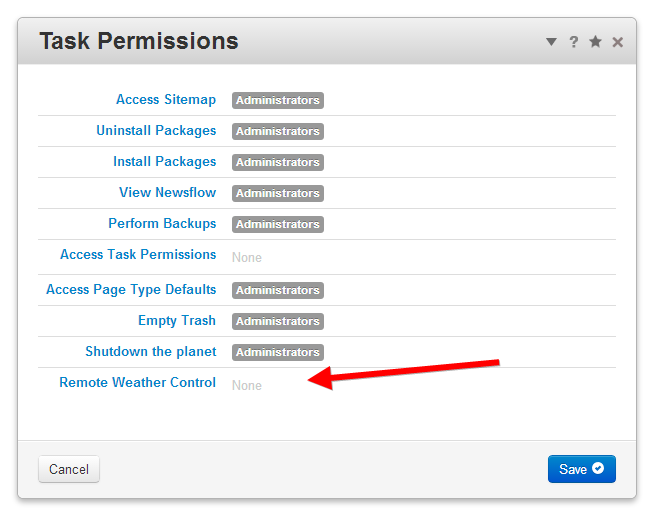
As you can see, our new permission key doesn’t have any groups assigned to it. You can either do that manually, or by code. In the example above, the first permission key shows you how to do that. Just have a look at the lines 33 to 40. We get an instance of our administrators group and then pass it along a permission access object which we can assign to our permission key.
Now that we have created our permission keys, we want to use them. This part is even easier, all you have to do is to create a PermissionKey object and run the “can()” method:
1 2 3 4 5 6 | $pk = PermissionKey::getByHandle('shutdown_planet'); if ($pk->can()) { echo t('Yes you are allowed to shutdown the planet'); } else { echo t('We are sorry but you have no permissions to shutdown the planet'); } |
You can find the complete example on github, https://github.com/Remo/codeblog/tree/master/codeblog_task_permissions. If you use the example and want to check the permissions, point your browser to http://