Blog


Concrete5 Beginner’s Guide

Concrete5 Beginner's Guide No posts for quite some time on this blog! I don’t have a new tutorial at the moment, but I still have an explanation and something exciting to tell you!

Some of you guys sent me messages telling me that they wish I’d still be as active in the Concrete5 community as I was a while ago. I was really great to hear that, it’s always good to know that someone appreciates your work. However, truth is, I’m still quite active, just not so much in the forums – there’s a good reason or two for that!

First, I have been rather busy doing Oracle and ERP related work which has nothing to do with Concrete5 at all. However, I’ve been spending quite a few evenings, nights and weekends working on a huge tutorial about Concrete5, more like a “book”! I was contacted by Packt Publishing in June and stared writing shortly after that. I’m currently working on the drafts of the last chapters, I’ll then go through the reviews and after that the people are Packt are going to make sure that everything looks and reads smoothly. However, you can already get access to the first chapters because the book has been accepted as a RAW book, just have a look at https://www.packtpub.com/create-and-customize-your-own-website-with-concrete5-beginners-guide/book. You’ll get access to each chapter as it gets written in an unfinished state.

The book is aimed for people knowing web technologies like PHP, JavaScript, HTML and CSS but without Concrete5 experience. It starts rather easy, for some of you too easy I assume but different readers, different skills. It the continues with a custom theme and lots of custom templates for some Concrete5 core blocks. We then look at building blocks, packages and a simple dashboard extension which allows you to have a look and modify your files on the server. Making it easier (and a bit dangerous) to quickly modify your Concrete5 configuration or theme files if you’re out on business without having the FTP credentials with you.

I hope you like it! The final and printed book is expected to be available in April!

Writing a Book

A few words about my experience writing a book. First of all, I had quite a few doubts, especially since English is not exactly my first language. I knew that I could explain myself in English in a way most people understand what I’m trying to say but still.. The people at Packt convinced me that this is not going to be a problem, especially since you never write a book which gets printed without having someone else having a look at it.

After my first doubts, things started very quickly and have gotten a bit stressful from time to time. There’s a deadline for each chapter to assure that everyone involved in the project is able to do their part in time. Working on a book like I do isn’t a fulltime job, for most authors at Packt it’s an evening and weekend job. This makes it sometimes a bit hard to meet all the deadlines with the result that things can be a bit stressful, especially if some unexpected things happen, at work or in your personal life. Nonetheless, I think it’s absolutely worth the effort, the imagination of finding your own book in your postbox or your favorite bookstore is awesome and drives you to keep working on the book.

Having a tight deadline for every chapter can also be really helpful, especially if you’re a bit like me. Whatever I do, I’d like to spend as much time on it as possible to get the best result possible. It also doesn’t happen very often that I think something is perfect… No matter what I do, having a limited amount of time is beneficial. Whenver I wrote a tutorial I told someone that it’s going to be online the next day and it usually was. Being on time is rather important, probably a disease I’ve got due to the fact that I’m Swiss. It’s pretty much the same with the book, you start writing on a chapter and the closer you get to meet the deadline, the more stressful things are but you feel reliefed once you’ve sent the mail, even if you don’t think your work’s as good as it should be.

If you ever get the chance to write a book, make sure you like writing, make sure you have some time or be prepared to sleep less 😉 It’s a great experience!
Concrete5 – Using TinyMCE Templates

The Concrete5 content block uses TinyMCE as its WYSIWYG editor. Thanks to this decision, we are able to use several plugins most Concrete5 users haven’t thought about.

One feature I really like is the “template” plugin which allows you to create html snippets which you can insert into the content block. In this tutorial I’m going to show you, how you can create a simple 2 and 3 column table template.

TinyMCE Configuration

You’ll find almost anything you have to know on this page: http://wiki.moxiecode.com/index.php/TinyMCE:Plugins/template. But luckily for you, I’m going to make this even easier for you.

First, you have to go to the Dashboard – Sitewide Settings. In the bottom right corner, you can activate a “Custom” configuration for the rich text editor. Once you’ve enabled it, it will show you some options. What do we need to activate the TinyMCE templates:

  • We have to load the template plugin
  • There must be a button to display the template dialog
  • We have to create at least one template
theme : "concrete", 
plugins: "inlinepopups,spellchecker,safari,advlink,template",
editor_selector : "ccm-advanced-editor",
spellchecker_languages : "+English=en",	
theme_concrete_buttons1 : "template,|,bold,italic,underline,strikethrough,|,justifyleft,justifycenter,justifyright,justifyfull,|,hr,|,styleselect,formatselect,fontsizeselect",
theme_concrete_buttons2 : "bullist,numlist,|,outdent,indent,|,undo,redo,|,link,unlink,anchor,image,cleanup,help,code,forecolor",
theme_concrete_blockformats : "p,address,pre,h1,h2,h3,div,blockquote,cite",
theme_concrete_toolbar_align : "left",
theme_concrete_fonts : "Andale Mono=andale mono,times;Arial=arial,helvetica,sans-serif;Arial Black=arial black,avant garde;Book Antiqua=book antiqua,palatino;Comic Sans MS=comic sans ms,sans-serif;Courier New=courier new,courier;Georgia=georgia,palatino;Helvetica=helvetica;Impact=impact,chicago;Symbol=symbol;Tahoma=tahoma,arial,helvetica,sans-serif;Terminal=terminal,monaco;Times New Roman=times new roman,times;Trebuchet MS=trebuchet ms,geneva;Verdana=verdana,geneva;Webdings=webdings;Wingdings=wingdings,zapf dingbats",
theme_concrete_font_sizes : "1,2,3,4,5,6,7",
theme_concrete_styles: "Note=ccm-note",
spellchecker_languages : "+English=en",
template_templates : [
	{
		title : "2 Columns",
		src : "themes/yourTheme/templates/2_columns.html",
		description : "Adds a 2 columns table"
	},
	{
		title : "3 Columns",
		src : "themes/yourTheme/templates/3_columns.html",
		description : "Adds a 3 columns table"
	}
]

There’s one thing you probably have to change. In the two templates I’ve added, there’s a hardcoded path which won’t work on your site. Make sure it points to an existing directory. The content of the html file is rather simple. I modified the example for TinyMCE to make it look like this:

<!-- This will not be inserted -->
<div class="mceTmpl">
<table width="98%" border="1" cellspacing="0" cellpadding="0">
<tr>
<th scope="col">HEADER 1</th>
<th scope="col">HEADER 2</th>
</tr>
<tr>
<td>Sample Data</td>
</tr>
</table>
</div>

How you can insert an HTML snippet

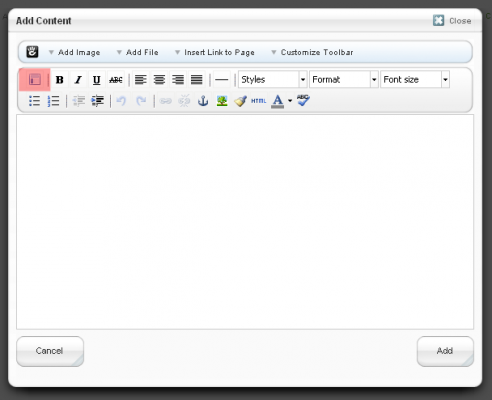
You’re already done, but where can you find the snippets? We you add a new content block, you’ll see a new button:

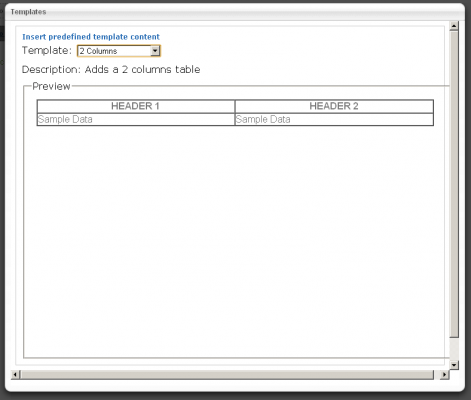
When you click on this button, you’ll see a dialog where you can select the template:

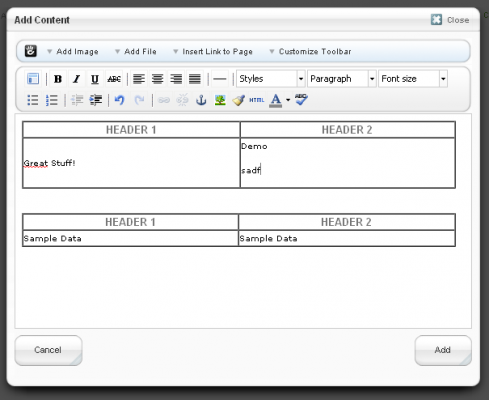
Unfortunately, the insert button is a bit hidden, you have to scroll down to insert the template. You can insert as many snippets into one content block as you want:

I hope you like it and thanks for completely reading this tutorial!


Linux Terminal im WebLinux Shell in a Browser

Als *unix Administrator wird man SSH wohl kennen und lieben. Auch wenn man mit einem Windows Computer arbeiten muss, kann mit Tools wie Putty sehr einfach auf dem Linux Server gearbeitet werden. Es gibt allerdings Situationen wo auch das nicht funktioniert, weil das Netzwerk ausgehenden SSH Traffic nicht zulĂ€sst. Dies ist auch verstĂ€ndlich, könnte man mit SSH doch sehr einfach einen verschlĂŒsselten Tunnel aufbauen und geheime Konten-Informationen klauen.

Es gibt jedoch einen Weg, mit dem man trotzdem auf den Linux Server zugreifen kann, ohne dabei die Möglichkeit zu haben, einen Tunnel zu erstellen. Das Tool das man dazu benötigt findet sich auf Google Code und nennt sich shellinabox.

Leute die wie ich mit Debian arbeiten, haben es besonders einfach:
wget http://shellinabox.googlecode.com/files/shellinabox_2.10-1_i386.deb
dpkg -i shellinabox_2.10-1_i386.deb

Damit wird automatisch eine Init Script erstellt welches man hier findet: /etc/init.d/shellinabox. Wurde dieses ausgefĂŒhrt, lĂ€sst sich die Linux Shell via Browser hier erreichen: https://localhost:4200. Da allerdings auch der Port 4200 wohl meistens geblockt wird, wollen wir den Verkehr von HTTPS zu 4200 umleiten, indem wir mit Apache einen Reverse Proxy einrichten. Als erstes mĂŒssen wir sicherstellen, dass beim Apache die entsprechenden Module aktiv sind:

/etc/apache2/mods-enabled
ln -s ../mods-available/proxy.conf
ln -s ../mods-available/proxy.load
ln -s ../mods-available/proxy_http.load

Anschliessend die gewĂŒnschte Apache Seiten Konfiguration anpassen. In meinem Fall hab ich in /etc/apache2/sites-available/default-ssl die folgenden Zeilen eingefĂŒgt:
<Location /shell>
ProxyPass http://localhost:4200/
Order allow,deny
Allow from all
</Location>

Shellinabox arbeitet standardmĂ€ssig mit HTTPS und kann von jeder IP Adresse angesprochen werden. Auch das Ă€ndern wir, indem wir in /etc/init.d/shellinabox SHELLINABOX_ARGS hinzufĂŒgen (nur die letzte Zeile in der folgenden Box):
# Set some default values
SHELLINABOX_DATADIR="${SHELLINABOX_DATADIR:-/var/lib/shellinabox}"
SHELLINABOX_PORT="${SHELLINABOX_PORT:-4200}"
SHELLINABOX_USER="${SHELLINABOX_USER:-shellinabox}"
SHELLINABOX_GROUP="${SHELLINABOX_GROUP:-shellinabox}"
SHELLINABOX_ARGS="--localhost-only --disable-ssl"

Nun alle Dienste neu starten: “/etc/init.d/shellinabox restart” und /etc/init.d/apache2 restart” – schon lĂ€sst sich die Shell via https://localhost/shell erreichen!If you’re a *unix admin you probably like SSH a lot. Even if you have to work on a Windows computer you can simply download a small tool like Putty and you’re ready to work on your server. However, there are situations where not even Putty works – if you’re behind a firewall that filters the outgoing traffic as well. It usually makes sense to block outgoing SSH traffic in a big company because you could easily create an encrypted tunnel to move secret data to any server you want.

But there’s another way to access your server using SSH like tools without having to worry about encrypted tunnels or any other threats SSH could cause. It’s called shellinabox and can be found on Google Code.

If you’re working with debian like I do, you can even download a prebuilt deb file.
wget http://shellinabox.googlecode.com/files/shellinabox_2.10-1_i386.deb
dpkg -i shellinabox_2.10-1_i386.deb

The installer creates an init script located in /etc/init.d/shellinabox. As soon as it has been started you can access your shell using any webbrowser using an address like this: https://localhost:4200. But the port 4200 is usually not accessible if you’re working behind a firewall that blocks SSH traffic. Let’s use apache to redirect traffic from HTTPS to 4200. We have to enable mod_proxy if it’s not already active:

/etc/apache2/mods-enabled
ln -s ../mods-available/proxy.conf
ln -s ../mods-available/proxy.load
ln -s ../mods-available/proxy_http.load

Edit the site file where you want to add your shell, I used /etc/apache2/sites-available/default-ssl and added these lines:
<Location /shell>
ProxyPass http://localhost:4200/
Order allow,deny
Allow from all
</Location>

Shellinabox uses https by default as well and is accessible by any ip address. We want to change that, let’s edit this file /etc/init.d/shellinabox and add SHELLINABOX_ARGS (the last line in the following box):
# Set some default values
SHELLINABOX_DATADIR="${SHELLINABOX_DATADIR:-/var/lib/shellinabox}"
SHELLINABOX_PORT="${SHELLINABOX_PORT:-4200}"
SHELLINABOX_USER="${SHELLINABOX_USER:-shellinabox}"
SHELLINABOX_GROUP="${SHELLINABOX_GROUP:-shellinabox}"
SHELLINABOX_ARGS="--localhost-only --disable-ssl"

If you now restart all the services “/etc/init.d/shellinabox restart” and /etc/init.d/apache2 restart”, you’re shell can be accessed by https://localhost/shell from anywhere you want!


Angepasste 404 Seite mit Concrete5Concrete5 – Custom 404 page

Es sollte nicht oft vorkommen, aber manchmal landen Internetseiten Besucher auf einer nicht vorhandenen Seite. Oft wird dann eine simple Seite angezeigt mit dem Hinweis dass die Seite nicht verfĂŒgbar ist. Etwas mehr Informationen können da hilfreich sein. Besonders wenn eine Seite einem kompletten Redesign unterzogen wurde, kommt es vor, dass Google Besucher auf nicht vorhandene Seiten schickt. In diesem Tutorial geht es um die Anpassung der “Standard 404-Seite”.

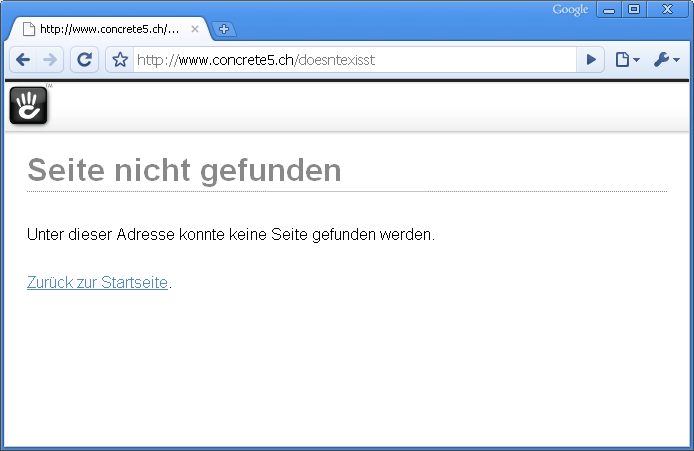
Concrete5 erlaubt es, ohne grossen Aufwand die 404-Seite anzupassen. Allerdings gibt es ein paar Dinge die man kennen muss. Als Ausgangslage dient diese Seite – die Standard Concrete5 404-Seite:

pagenotfound

It hopefullly doesn’t happen very often but sometimes a user might enter an address which doesn’t exist. In most situations a simple page is displayed, telling him that the page doesn’t exist. Having some more detailled information can be very helpful, especially when you just relaunched your website. Google & Co need a while to reindex your page and users will probably see “page not found” more frequently than usually.

Concrete5 allows you to customize this page but it needs a few modifications. Some of them are probably a bit hard to find – which is why I wrote this tutorial. The standard Concrete5 “page not found” page looks like this:

pagenotfound


Bilder in der NavigationImage Navigation Items

Concrete5 Navigation mit Bildern – der autonav Block erlaubt es sehr einfach und schnell eine hierarchische Seitenstruktur zur Navigation einzufĂŒgen. Sollen jedoch nicht Text-Links, sondern Bilder angeklickt werden, braucht es etwas mehr Arbeit.

In diesem Tutorial werde ich ein “Custom Template” fĂŒr den autonav Block erstellen, welches ein Attribut von einer Seite ausliest um ein Bild anstelle des Textes anzuzeigen.

It’s been a while since I’ve posted the last tutorial. Due to some unexpected events I finally found some time to write a new one.

The default autonav Block in Concrete5 allows you to add a navigation/menu to your site in almost no time. But as soon as you want to use images it get a bit more difficult. In this tutorial I’m going to show you, how you can specify pictures for each page and pull them in an autonav template.


Inhalt ein- und ausblenden – BlockExpand/Collapse Block

Aufgrund von zeitlichen EinschrĂ€nkungen ist es nun eine Weile her als ich etwas auf codeblog publiziert habe. Heute ist es kein Artikel, fĂŒr ErklĂ€rungen hat’s leider nicht gerreicht. DafĂŒr aber ein gratis Block fĂŒr eure Internetseite.

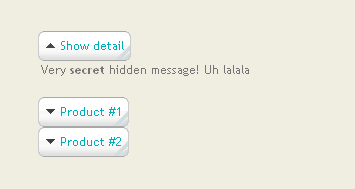
Ein simpler Block im Inhalt anzuzeigen den man bei Bedarf aus- und wieder einblenden kann:

expand

Due to limited time I wasn’t able to write new articles for codeblog. This time there’s not going to be much text, just a free block which you can use for your site.

expand


Concrete5 – Form stylingConcrete5 – Formular Layout anpassen

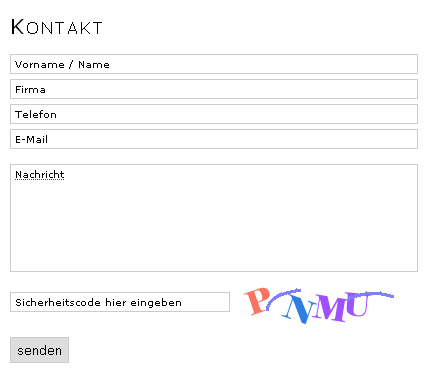
Concrete5 bietet einen netten Form Block, mit dem man Formulare in wenigen Sekunden erstellen. Dies ohne HTML oder PHP Kenntnisse. UnglĂŒcklicherweise lĂ€sst sich der HTML Code davon, nur schlecht mit CSS anpassen. In diesem Tutorial zeige ich, wie man ein Formular in diesem Stil erstellen kann:

Styles Form

Concrete5 has a nice form block which allows you to create a contact form within a few seconds. You don’t even need to have any html or php skills to create a simple file upload form. Unfortunately this block isn’t very easy to style. It uses some html markup which makes it a bit tricky to use CSS. However, it doesn’t mean it’s impossible! I’m going to show you how you can easily create a styles form using Concrete5 Custom Templates to produce this:

Styles Form


Vorschau Text mit PHPSmart text trimming with PHP

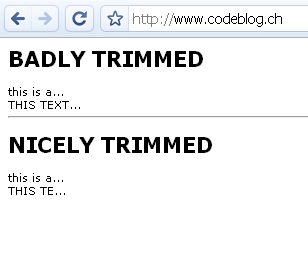
Möchte man einen kurzen Vorschautext in PHP erstellen, der einen Anriss des effektiven Textes zeigt, so wird man wohl oft die einfachste Variante gewÀhlt haben, und einfach nach einer Anzahl definierten Zeichen abgeschnitten haben. Dies generiert jedoch ein unschönes Ergebnis, wenn man eine proportionale Schrift verwendet. SÀmtliche Text haben markant unterschiedliche LÀngen wie auf diesem Bild gezeigt wird:

text-trimming

Dieser Artikel zeigt einen einfachen Ansatz, diese Problematik etwas eleganter zu lösen!

Have you ever tried to create a short preview text using PHP? Did you just count the characters and ended up having texts with a completely different width like shown on this picture?

text-trimming

This tutorial describes a small method which calculates the real width of a string and lets you create better looking preview texts!


Concrete5 – mehr Speed mit eAcceleratorConcrete5 – more Speed with eAccelerator

UPDATE: Die aktuelle eAccelerator Version enthĂ€lt kein PHP API mehr! Ich eAccelerator deshalb im Zusammenhang mit Concrete5 nicht mehr empfehlen. Die kommende Version 5.4 wird jedoch UnterstĂŒtzung fĂŒr APC und memcache haben!

Mehr Geschwindigkeit bei Concrete5? Stellen Sie sicher, dass eAccelerator lÀuft!

In diesem Tutorial erklÀre ich, wie man eAccelerator auf einem Debian Server installiert um bei Concrete5 mehr Geschwindigkeit zu bekommen.

eaccelerator1

UPDATE: The latest eAccelerator version doens’t contain the PHP API anymore. It therefore does no longer work with Concrete5! The upcoming version 5.4 is going to have support for APC and memcache. Sorry!

You want more speed with Concrete5? Make sure you’re using eAccelerator!

In this tutorial I’ll explain how to install eAccelerator on a Debian Linux Server.

eaccelerator1


Concrete5 – Team Datenbank in TabelleConcrete5 – Staff listing with two Columns

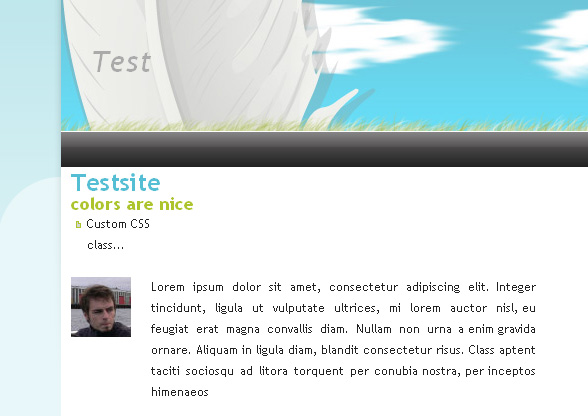
In vielen FĂ€llen soll eine Internetseite Elemente enthalten, die in zwei Spalten dargestellt werden sollen. In diesem Tutorial beschreibe ich einen sehr einfachen Block, um ein Bild einer Person anzuzeigen, so dass die Beschreibung rechts vom Bild dargestellt wird.

Das Ergebnis schaut folgendermassen aus:

staff1

Sometimes content should be presented in two columns. In this tutorial I’ll describe a possible solution that included a very simple block to display a staff/team member with a description on the right side of it. The result will look like this:

staff1